
- Home
-

- Fragments
-
- MLX fragments
-
- Testing a proxy
Testing a proxy
 Written by
( Updated on November 13th, 2026 )
Updated on November 13th, 2026
This error typically means your proxy is offline or not working properly. Don’t worry – we’ve got multiple ways to fix the issue.
Test your proxy
Most profile issues, according to our users, are caused by a malfunctioning proxy. But how can you tell if the problem is with Multilogin or your proxy?

➡️ To test a proxy in Multilogin, select the browser profile or Android cloud phone → click “Check proxy” in the top menu → review the result.
- “Proxy check passed” – Multilogin connected to the proxy and retrieved the required connection data
- “Proxy check failed” – Multilogin could not connect to the proxy; check the traffic balance, connection details, and provider status
Testing your proxy outside the app helps determine the root cause of the issue:
- If the proxy works outside Multilogin, the issue is likely with the app
- If the proxy doesn’t work anywhere, the issue is with the proxy itself
In this article, we’ll guide you through three simple options to test your proxy and pinpoint the issue. You will learn how to test the proxy both in Multilogin and outside the app.
If your system time is set manually, it can cause connection issues. In this case, sync your timezone with the internet to fix the issue. This simple step often restores normal functionality!
Option 1: check proxy with Multilogin
Check proxy traffic
Multilogin proxy
First, check the proxy traffic in the bottom-left corner of the app.

Then, top up your Multilogin proxy, if the traffic has run out.
Your proxy traffic may show a negative value (for example, -1000 bytes). It also means that the traffic has run out.
Proxy traffic is available as a paid add-on. Pricing depends on the package you choose, so check the current options when you top up.
For instructions, see how to add proxy traffic in Multilogin.
VAT may be applied to proxy packages depending on your location and tax status.
Custom proxy
Contact your proxy provider to check the current amount of traffic and top it up if necessary.
Check proxy connection status
If your proxy has enough traffic, test if it's online. Here’s what the results mean:
- ✅ Proxy check passed: Multilogin connected to your proxy and got everything it needs
- ❌ Proxy check failed: the root cause found, your proxy is offline – replace it to continue working in this profile or get a new IP
Select a profile from the list and click “Check proxy” in the top menu. If you use Multilogin proxy, you can also click “Refresh IP” to get a new IP from the same pool. These options are also available in the right-click menu.

Option 2: check proxy with browser extensions
Want another way to check if your proxy is working? Use a browser extension to test it in a regular Firefox and Chrome browser:
- If the proxy doesn’t work in a regular browser (you can’t load any pages), contact your proxy provider for help
- If the proxy works in a regular browser but not in Multilogin, let our support team know so we can investigate!
If your proxy doesn’t work in a regular Chrome or Firefox browser, it won’t work in Multilogin either.
No worries, though – your proxy provider can help! They might:
- Fix a server-side issue
- Provide you with a new proxy
- Adjust some settings to get things running
Reach out to them, and they’ll sort it out for you!
Option 3: check proxy with local settings
Finally, you can check your proxy by adding it to your device’s network settings. Then, try loading a website in your browser.
Here’s what to do next:
- If the proxy doesn’t work (you can’t load any pages), contact your proxy provider for help
- If the proxy works fine on your device but not in Multilogin, reach out to our support team – we’ve got your back!
Windows
- Open the start menu in the bottom left corner and click the gear icon
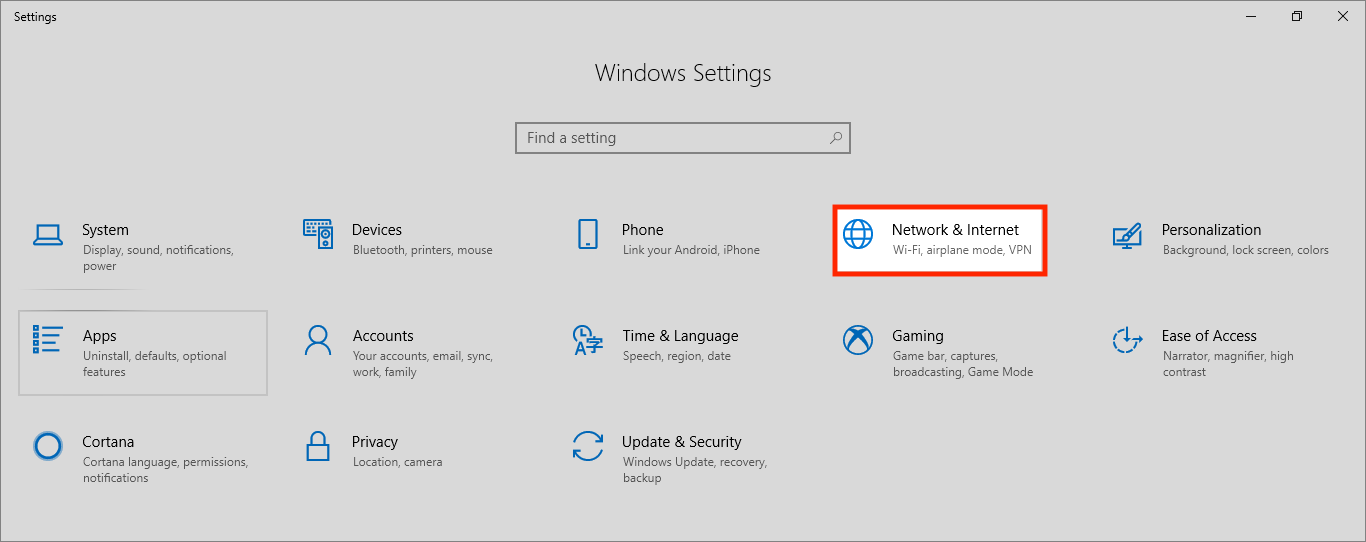
- In the “Windows Settings” menu, go to “Network & Internet”
- Click “Proxy” in the left panel to access proxy settings
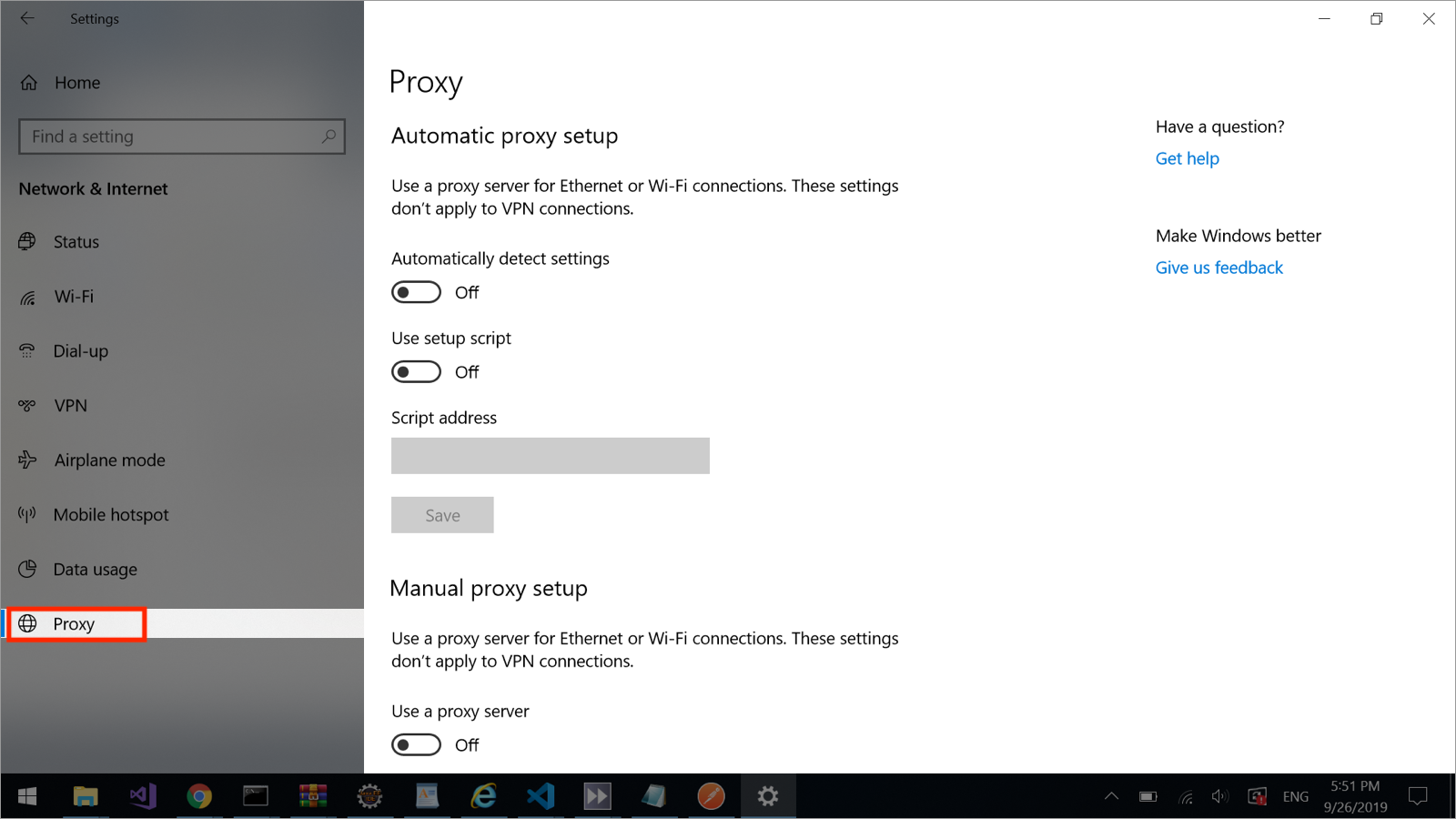
- Set up a proxy:
- Automation setup: enable the “Use setup script” option – you'll get the PAC file path in the “Script address” section.
-
Manual setup:
- Under “Manual proxy setup” enable the “Use a proxy server” option
- Enter your proxy details into the “Address” and “Port” sections
- Enable “Don’t use the proxy server for local (intranet) addresses”
Ensure the PAC file is saved on your computer, and there’s a complete path to it.
macOS
- Open your system settings and type “proxies” in the search field
- Click “Proxies” in the search results to see a list of proxy protocols

- Set up a proxy:
- Automatic setup: enable the “Automatic proxy configuration” option – you'll get the PAC file path in the “URL” section
-
Manual setup:
- Enable the “Web Proxy (HTTP)” or “Secure Web Proxy (HTTPS)” option
- Enter your proxy details into the “Server” and “Port” sections
Ensure the PAC file is saved on your computer, and there’s a complete path to it.
Learn how to manage multiple Reddit accounts safely – check out our Reddit proxy & antidetect guide for tips on avoiding bans, blocks, and detection.
Proxy test is fine?
Having trouble with profile start or proxy connection issues in Multilogin? Don’t worry, it’s usually an easy fix! This guide will walk you through the steps to get things up and running smoothly again.
If a browser profile won’t start or shows a proxy connection error, first check the Multilogin status page and run “Check proxy”.
➡️ Select the browser profile → click “Check proxy” in the top menu.
If the proxy check fails, review the proxy traffic, connection details, and provider status. If the proxy check passes but the profile still won’t start, restart the desktop app, then continue with the troubleshooting steps below.
Check your proxy
Use the guide How to test a proxy to learn more.
Check proxy traffic
Multilogin proxy
First, check the proxy traffic in the bottom-left corner of the app.
Then, top up your Multilogin proxy, if the traffic has run out.
Your proxy traffic may show a negative value (for example, -1000 bytes). It also means that the traffic has run out.
Proxy traffic is available as a paid add-on. Pricing depends on the package you choose, so check the current options when you top up.
For instructions, see how to add proxy traffic in Multilogin.
VAT may be applied to proxy packages depending on your location and tax status.
Custom proxy
Contact your proxy provider to check the current amount of traffic and top it up if necessary.
Check proxy connection status
If your proxy has enough traffic, test if it's online. Here’s what the results mean:
- ✅ Proxy check passed: Multilogin connected to your proxy and got everything it needs
- ❌ Proxy check failed: the root cause found, your proxy is offline – replace it to continue working in this profile or get a new IP
Select a profile from the list and click “Check proxy” in the top menu. If you use Multilogin proxy, you can also click “Refresh IP” to get a new IP from the same pool. These options are also available in the right-click menu.
Restart the app
The issue might occur because of the app glitch. Restart the desktop app 🖥️ or reconnect the agent, if you're on the web interface 🌐.
Check third-party apps
Some apps on your computer, like antivirus programs, firewalls, VPNs, and proxy tools, can mess with Multilogin. These apps might stop Multilogin from working right or make things run slower.
Here are some quick fixes:
- Uninstall these apps
- If you do need them, disable the apps temporarily or add Multilogin to their whitelist in the settings
This should help resolve the issue and keep everything running smoothly!
How to resolve conflicts with 3rd-party apps on Windows:
Antivirus apps
- Go to “Settings” → “Privacy & security” → “Windows Security” → “Virus & threat protection”

- Choose “Manage settings” and then turn off all the parameters in the displayed window

Firewalls
- Go to “Settings” → “Privacy & security” → “Windows Security” → “Firewall & network protection”

- Turn off all the parameters in the displayed window

VPNs
Uninstall VPN applications:
- Open “Control Panel” →” Programs” → “Programs and Features”
- Right-click the VPN applications → “Uninstall”

Disable VPN applications: open the menu in the task bar → right-click the VPN apps → click “Quit”

Turn off VPN extensions in browser: don't forget to check and turn off VPN extensions that you installed in your browser, for example, Chrome:

How to resolve conflicts with 3rd-party apps on macOS:
macOS security system
If the application got restricted from the macOS security system, you can access it by the following way:
- Open “System Settings” → “Privacy & Security” → “Security”
- Click “Open anyway” for the apps
We recommend to change “Allow applications from” value to “App Store & Known Developers”.

Antivirus apps
- Go to “Finder” → “Go” → “Application”
- Right click the antivirus apps → “Move to Bin”

Firewalls
- Open “Apple menu” → “System Preferences” → “Network”
- Go to the “Firewall” tab and turn it off

VPNs
Uninstall VPN applications:
- Go to “Finder” → “Go” → “Application”
- Right-click the VPN apps → “Move to Bin”
Disable VPN applications: right-click the VPN apps on the menu bar → choose “Quit <name of app>”.

Turn off VPN extensions in browser: don't forget to check and turn off VPN extensions that you installed in your browser. This is an example for Safari browser:
- Choose “Safari” → “Settings” (or “Preferences”) → click “Extensions”
- To turn off an extension, deselect its checkbox
Check the ISP
Sometimes, internet service providers (ISPs) block proxy providers or even Multilogin itself. Here’s how to test and work around it:
- Try connecting through a VPN: this can bypass ISP restrictions
- Switch networks: use a different Wi-Fi, or turn your phone into a hotspot with mobile data
- Check your speed: if your current ISP is slow, changing networks might also improve performance.
If the issue resolves with these steps, it’s likely your ISP causing the trouble.
Refresh components
- Close the desktop app 🖥️ or disconnect the agent if you're using the web interface 🌐
- Go to the
mlxfolder:-
Windows:
C:\Users\%username%\mlx -
macOS:
/Users/%username%/mlx -
Linux:
/home/%username%/mlx
-
Windows:
- Delete the
depsfolder - Reopen the desktop app 🖥️ or reconnect the agent for the web interface 🌐
- Start any profile – this will automatically kick off the components download process
Sync system timezone
Windows
- Click “Start” → “Settings”
- Go to “Time & language” → “Date & time”
- Enable “Set time zone automatically” and “Set time automatically”
- Click “Sync now”

Can’t enable “Set time zone automatically”? Turn on location services:
- Go to “Settings” → “Privacy & security” → “Location”
- Enable “Location services”
- Enable “Let apps access your location”

macOS
- Go to “System Settings” → “General”
- Choose the “Date & Time” section
- Enable the “Set time and date automatically” and “Set time zone automatically using your current location” settings

Can’t enable automatic timezone detection? Turn on location services:
- Go to “System settings” → “Privacy & Security”
- Pick “Location services”
- Turn on this feature for Multilogin

Nothing helps?
If you still can't launch a profile, send us your proxy details (IP or hostname, port, login, and password) and logs. We’ll investigate and provide the best solution for you!
- Recreate the issue or wait until the error message appears
- Archive the logs folder found in these locations:
-
Windows:
C:\Users\%username%\mlx -
macOS:
/Users/%username%/mlx -
Linux:
/home/%username%/mlx
-
Windows:
- Email support at support@multilogin.com with:
- A clear description of the issue
- The archived logs folder attached
